- Movie Maker requires Windows Vista.
- To use Movie Maker in Windows Vista Home Basic N and Windows Vista Business N, you must have Windows Media Player installed. If you try to start Movie Maker in these editions of Vista without Media Player installed, Movie Maker will stop responding. To install Windows Media Player, go to: http://download.microsoft.com/download/a/c/3/ac367925-39e7-4451-a175-a224f94fbdce/wmformat11sdk.exe
- Movie Maker beta only supports adding media from your local hard drive. Media added from a network share or external device is not supported in the beta.
- Movie Maker beta only supports the following file formats: WMV, JPEG, MP3, and WMA. Using any other video, photo, or music file format may create problems using the beta.
- The Effects and Transitions galleries in Movie Maker beta don’t properly display applied effects and transitions when more than one item is selected in the storyboard.
- Movie Maker beta doesn’t support audio mixing. If you add a song as a soundtrack to a video, it's possible that the audio from the music files will overpower the audio from the video files. To prevent this, you can use the Windows Media Encoder http://www.microsoft.com/windows/windowsmedia/default.mspx to re-encode the music to a lower volume level before you add it to your Movie Maker project.
Showing posts with label microsoft. Show all posts
Showing posts with label microsoft. Show all posts
Wednesday, November 26, 2008
Problem in Windows Live Movie Maker and How To Fix It
Problems in Windows Live Movie Maker and how-to fix it:

Monday, November 24, 2008
IE8 will released at 2009
Microsoft plans to offer one more public test version of Internet Explorer 8 before releasing the final version of the updated browser.The next test, essentially a "release candidate" version will come in the first quarter of 2009.Next public release of IE (typically called a "release candidate") indicates the end of the beta period.
Information taken from cnet.com
Tuesday, November 18, 2008
How To Downgrade/Uninstall Windows Live Messenger 2009 Beta to Messenger 8.5 or Older
Microsoft have released the new Windows Live Messenger 2009 Beta few months ago.If you have installed it you felt it not suitable to you or have some bug/problem,you can downgrade it to the previous version with this way>
You cant install the previous version of Windows Live Messenger when you have installed the beta version of Windows Live Messenger in your pc.To resolve this,you have to uninstall all the Windows Live Beta program.
For Windows XP:
1. Click Start, and then click Control Panel.
2. In Category view, click Add or Remove Programs, and then click Remove a program.
3. Click Windows Live Beta (all programs), and then click Change/Remove.
4. Click Install or uninstall, and then click Continue.
5. Clear the check boxes for each program, and then click Continue.
For Windows Vista:
1. Click Start, and then click Control Panel.
2. In Category view, click Programs, click Programs and Features, and then double-click Windows Live Beta (all programs).If you are prompted for an administrator password or confirmation, type the password or provide confirmation.
3. Click Install or uninstall, and then click Continue.
4. Clear the check boxes for each program, and then click Continue.
You can get the previous version of Windows Live Messenger from http://get.live.com/
You cant install the previous version of Windows Live Messenger when you have installed the beta version of Windows Live Messenger in your pc.To resolve this,you have to uninstall all the Windows Live Beta program.
For Windows XP:
1. Click Start, and then click Control Panel.
2. In Category view, click Add or Remove Programs, and then click Remove a program.
3. Click Windows Live Beta (all programs), and then click Change/Remove.
4. Click Install or uninstall, and then click Continue.
5. Clear the check boxes for each program, and then click Continue.
For Windows Vista:
1. Click Start, and then click Control Panel.
2. In Category view, click Programs, click Programs and Features, and then double-click Windows Live Beta (all programs).If you are prompted for an administrator password or confirmation, type the password or provide confirmation.
3. Click Install or uninstall, and then click Continue.
4. Clear the check boxes for each program, and then click Continue.
You can get the previous version of Windows Live Messenger from http://get.live.com/
Saturday, November 15, 2008
How To Downgrade IE8 to IE7 or 6 in both XP and Vista
The Internet Explorer 8 Beta 2 was released at August 2008.It comes with many new functions such as InPrivate browsing function.However,there are still many problem in this beta version of this Internet Explorer.
You can downgrade your IE8 to IE7 or 6 by the following way>
For Windows XP platform,just go to add or remove program and find Internet Explorer 8 Beta then remove it.Your IE version will become your previous version that you were using before you upgrade.
For Windows Vista platform,you won't be able to find IE8 Beta at the add or remove program windows.You can go to Windows Update>View Update History>Installed Updates>find Internet Explorer 8 Beta then uninstall it.
 Your IE version will become Version 7 after you uninstalled.
Note:Please update(if have) your IE after your done that(uninstall Beta) through Windows Update.Some critical updates are very important.
Hope this can help you^^
You can downgrade your IE8 to IE7 or 6 by the following way>
For Windows XP platform,just go to add or remove program and find Internet Explorer 8 Beta then remove it.Your IE version will become your previous version that you were using before you upgrade.
For Windows Vista platform,you won't be able to find IE8 Beta at the add or remove program windows.You can go to Windows Update>View Update History>Installed Updates>find Internet Explorer 8 Beta then uninstall it.
 Your IE version will become Version 7 after you uninstalled.
Note:Please update(if have) your IE after your done that(uninstall Beta) through Windows Update.Some critical updates are very important.
Hope this can help you^^
Tuesday, November 4, 2008
Customize XP to Vista
1)BicroPack Vista Inspirat Ultimate 2(Vista looks)
http://www.crystalxp.net/galerie/en.id.130.htm
to uninstall>>go to add/remove program then uninstall it^^
This software has been downloaded almost 9000000 times in the beginning of November 2008 at crystalxp.net

Enjoy looking 'Windows Vista'^^
2)Winflip (Windows Flip 3D)
This software give you the Vista Flip3D effect.You can download this software from http://winflip.stylekings.de/
Windows Vista Home Basic user also can try this,I have installed also^^
after you downloaded it,extract the folder>>open a folder at hard disk C and named it Winflip>>copy all those file in the extracted folder and paste it in the hard disk folder you just opened>>double click WinFlip icon>>click run>>(hole start+tab button)

enjoy flipping^^
3)TrueTransparency
Gives the effect of transparency windows like in Windows Vista Premium,Business and Ultimate.You can download it at http://www.crystalxp.net/galerie/en.id.5139-truetransparency-lefreut-explorer-tools.htm
This software has been downloaded almost 1,000,000 times in the beginning of November 2008 at crystalxp.net

You can also add skin on the TrueTransparency to make it more nicer.

Vista Basic looked skin>>

http://www.crystalxp.net/galerie/en.id.10366-vista-basic-for-true-transparency-pechpech-skins.htm

Added colour looked skin>>
http://www.crystalxp.net/galerie/en.id.5724-human-for-true-transparency-mastercloud-skins.htm
Aero effect skin(most pretty)>>
http://www.crystalxp.net/galerie/en.id.7809-true-aero-for-truetransparency-0-8x-nobodyuse-skins.htmTo exit TrueTransparency,open task manager(right click the taskbar and click task manager),and find TrueTransparency then end process it.
Enjoy transparency-ing^^
4)These following applications gives the function of Windows Live Preview in Windows Vista.
a) Visual Task Tips>>

You can download it at
Suitable for WinXP and WinVista Home Basic(Home Premuim and others already got this function)
b)Visual Tooltip>>

You can download it at
http://www.crystalxp.net/galerie/en.id.197-visual-tooltip-chsalmon-explorer-tools.htmThis software has been downloaded about 620,000 times in the beginning of November 2008 at crystalxp.net(more than visual task tips).However,based the information provided at crystalxp.net,Visual Tooltip only suitable for WinXP.
5)These following applications give the function of Windows Sidebar in Windows Vista.
a)Vista Rainbar V4>>

You can download it from
http://www.crystalxp.net/galerie/en.id.13399-vista-rainbar-v4-gavatx-launchers.htmRuns on both WinXP and WinVista.
b)Google Desktop>>

Contains Mac,Linux and Windows versions.You can download it from
http://desktop.google.com/Making Windows XP looks like Windows Vista actually not that hard.
Enjoy^^
Sunday, November 2, 2008
PDC 2008
PDC (Professional Developers Conference) is to understand the future of the Microsoft platform and to exchange ideas with fellow professionals. You’ll learn about upcoming products, meet Microsoft’s leaders and top engineers.
For more information,please refer to http://www.microsoftpdc.com/About/

For more information,please refer to http://www.microsoftpdc.com/About/

Friday, October 31, 2008
Windows Media Player 11 and how-to tips
Windows Media Player 11 is an application used to manage,hear,enjoy your music anytime.Media Player 11 is pre-installed at every Windows Vista OS.XP user can download it from http://www.microsoft.com/windows/windowsmedia/player/11/default.aspx
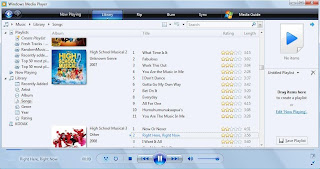 You can also apply various type or skin and visualizations to Windows Media Player,making your player nicer and prettier.Rip and burns song in Windows Media Player 11 also made easy.
To download skin>>http://www.microsoft.com/windows/windowsmedia/player/skins.aspx?locale=409&geoid=f4&version=11.0.6001.7000&userlocale=409
To download visualizations>>http://www.microsoft.com/windows/windowsmedia/player/visualizations.aspx?locale=409&geoid=f4&version=11.0.6001.7000&userlocale=409
There are some tips when using media player.
1) When adding album art please follow this steps (right click a song in your music library>advanced tag editor>pictures tab>add>find the file you want to add>hit ok).Please dun straight away paste the album art to the cd picture,this is because the resolution of the album art will be very low.If you have iTune and you are using the cover flow function,the album art will be very blur.
2)When you do not know about the song information you have,you can (right click the song in your music librarty>find album info).
3)You can change the way of the time display by clicking the time in media player.
4)When searching song at the search bar in media player,click the drop down button to filter the search result by artists or album.
Enjoy yourself with your media stuff with WMP11^^
 You can also apply various type or skin and visualizations to Windows Media Player,making your player nicer and prettier.Rip and burns song in Windows Media Player 11 also made easy.
To download skin>>http://www.microsoft.com/windows/windowsmedia/player/skins.aspx?locale=409&geoid=f4&version=11.0.6001.7000&userlocale=409
To download visualizations>>http://www.microsoft.com/windows/windowsmedia/player/visualizations.aspx?locale=409&geoid=f4&version=11.0.6001.7000&userlocale=409
There are some tips when using media player.
1) When adding album art please follow this steps (right click a song in your music library>advanced tag editor>pictures tab>add>find the file you want to add>hit ok).Please dun straight away paste the album art to the cd picture,this is because the resolution of the album art will be very low.If you have iTune and you are using the cover flow function,the album art will be very blur.
2)When you do not know about the song information you have,you can (right click the song in your music librarty>find album info).
3)You can change the way of the time display by clicking the time in media player.
4)When searching song at the search bar in media player,click the drop down button to filter the search result by artists or album.
Enjoy yourself with your media stuff with WMP11^^
Thursday, October 30, 2008
Windows Sidebar and how-to tips
Windows sidebar is an application that can used to view various information.This made user more easy to view information or doing their works.Windows Sidebar is available in all editions of Windows Vista.Below is a screen shot showing various types of gadgets at my computer desktop.
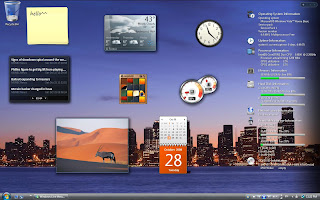 With Windows Sidebar you can know what is the current time,date or even your computer information such as operating system,ram/cpu usage and so on... you can also enjoying slide show with the picture in your computer or playing some simple games.Knowing the weather,news or doting notes also can be done by using Windows Sidebar.
To open Windows Sidebar,user can click Start>All Program>Accessories>Windows Sidebar or type Sidebar at the start search.To close Windows Sidebar,user can right click the Windows Sidebar icon at taskbar (expand if needed) and click exit.
User can download more gadgets by click the 'plus' button at the right top on the screen and click download more gadgets.Or you can go to http://vista.gallery.microsoft.com/vista/SideBar.aspx?mkt=en-us to download.
When user click the plus button,user will see the collection of gadgets that he or she have.By clicking the "show details",user will see the information of the selected gadgets.User also can types the name of a gadgets in the search bar to search gadgets.By clicking the arrow button beside the search bar,user can search gadgets by filtering the author of the gadgets.
Conclusion,make our life easier with Windows Sidebar by making full use of it.
Enjoy easier life and enjoy playing gadgets^^
 With Windows Sidebar you can know what is the current time,date or even your computer information such as operating system,ram/cpu usage and so on... you can also enjoying slide show with the picture in your computer or playing some simple games.Knowing the weather,news or doting notes also can be done by using Windows Sidebar.
To open Windows Sidebar,user can click Start>All Program>Accessories>Windows Sidebar or type Sidebar at the start search.To close Windows Sidebar,user can right click the Windows Sidebar icon at taskbar (expand if needed) and click exit.
User can download more gadgets by click the 'plus' button at the right top on the screen and click download more gadgets.Or you can go to http://vista.gallery.microsoft.com/vista/SideBar.aspx?mkt=en-us to download.
When user click the plus button,user will see the collection of gadgets that he or she have.By clicking the "show details",user will see the information of the selected gadgets.User also can types the name of a gadgets in the search bar to search gadgets.By clicking the arrow button beside the search bar,user can search gadgets by filtering the author of the gadgets.
Conclusion,make our life easier with Windows Sidebar by making full use of it.
Enjoy easier life and enjoy playing gadgets^^
Subscribe to:
Posts (Atom)