Some program will send some user private information through internet.If want to prevent this,user can use Zone Alarm .This software can prevent a program from connecting to the internet.
After you install,open it.
Click program control,then program.
You will see a list of program that prevented to connect to internet,at the bottom right got a "add" button you can browse the program you want.
Showing posts with label tutorial. Show all posts
Showing posts with label tutorial. Show all posts
Friday, December 4, 2009

Saturday, November 28, 2009
Get Windows Aero in Virtualbox
Virtualbox is a virtual machine that can run various operating system in only one computer.
However the newest version(version 3),did not support Windows Aero.
You can use True Transparency in Virtualbox in order to get Windows Aero effect.
However the newest version(version 3),did not support Windows Aero.
You can use True Transparency in Virtualbox in order to get Windows Aero effect.
Friday, November 27, 2009
Install Chrome OS on VMware Workstation
Chrome OS is an operating system made by Google.You can first download the Image from GDGT
You need to register an account at GDGT in order to download the Image.The file is about 300MB(compressed) and 700MB(uncompressed).
After that you need to download the VMware Workstation setup (30days trial)
Install VMware Workstation on your PC.Open VMware Workstation.
Click Custom,Next.
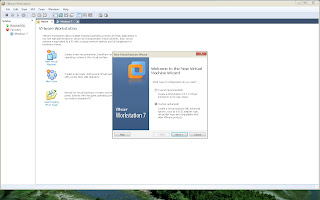
Next.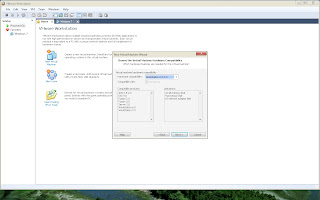
Click "I Will Install The Operating System Later",Next.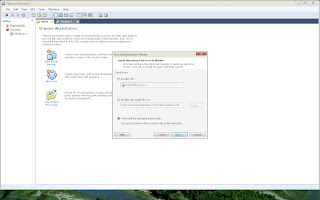
Select "Linux",then "Ubuntu",Next.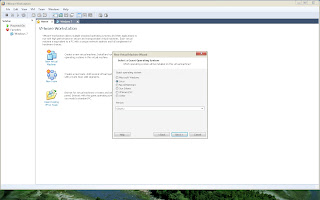
Name your virtual machine as "Chrome OS".Next
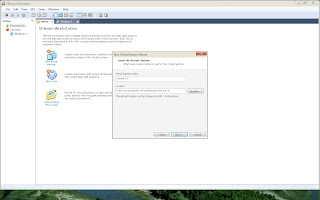
Next.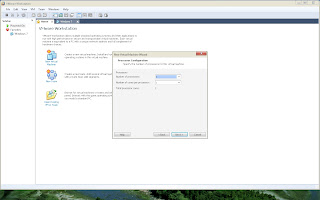
Set the virtual machine RAM as 512MB(depending on how much RAM you have).Next
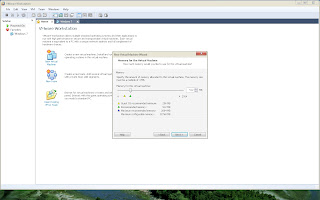
Click "Use bridged networking",Next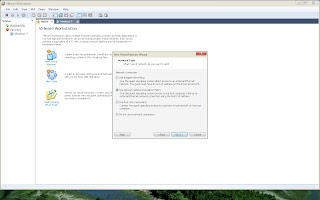
Next.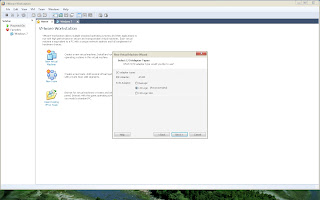
Click "Use an existing virtual hard disk",Next.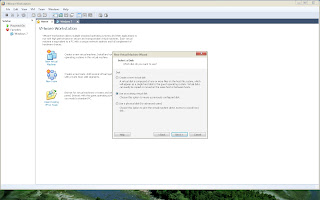
Open the image file that you have downloaded.
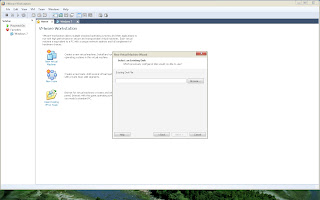
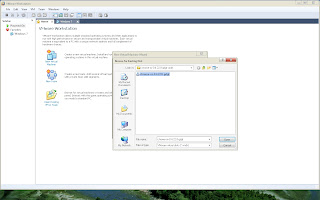
Next.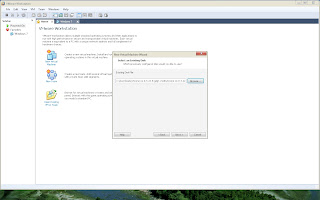 Finish.
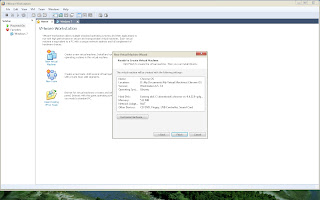
Click "Power on this virtual machine".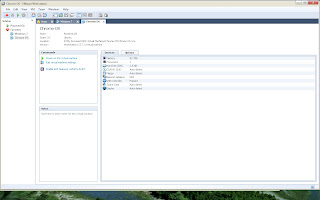
You need to register an account at GDGT in order to download the Image.The file is about 300MB(compressed) and 700MB(uncompressed).
After that you need to download the VMware Workstation setup (30days trial)
Install VMware Workstation on your PC.Open VMware Workstation.
Click Custom,Next.

Next.

Click "I Will Install The Operating System Later",Next.

Select "Linux",then "Ubuntu",Next.

Name your virtual machine as "Chrome OS".Next

Next.

Set the virtual machine RAM as 512MB(depending on how much RAM you have).Next

Click "Use bridged networking",Next

Next.

Click "Use an existing virtual hard disk",Next.

Open the image file that you have downloaded.


Next.
 Finish.
Click "Power on this virtual machine".

Wednesday, November 25, 2009
Install Chrome OS on VirtualBox
Chrome OS is an operating system made by Google.You can first download the Image from GDGT
You need to register an account at GDGT in order to download the Image.The file is about 300MB(compressed) and 700MB(uncompressed).
After that you need to download the VirtualBox setup
Currect version is version 3.0.12 on 17 November 2009.
Install VirtualBox on your PC.Open VirtualBox.
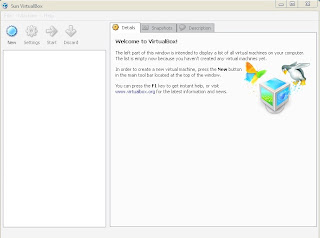
Click New.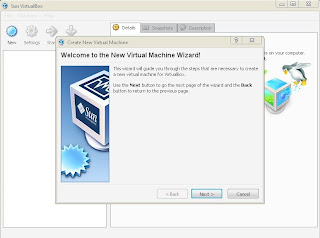
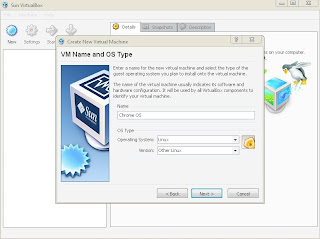
Simply name the OS as 'Chrome OS" and the type you can choose "Linux" and "Others".
Set the RAM,it is recommended to choose 512MB depending on your current PC RAM you have.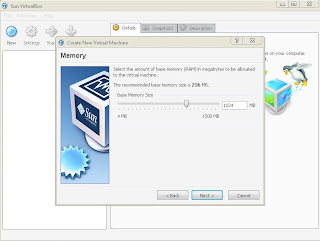
Click the "use existing hard disk" and open your downloaded and uncompressed .vmdk file.
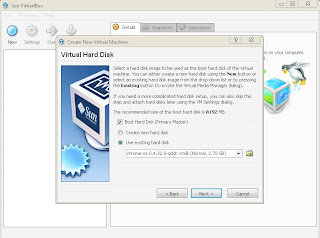
Like this.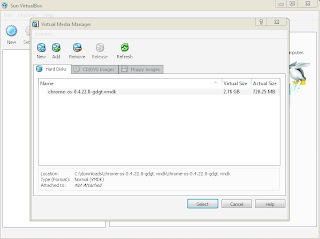
Click next.
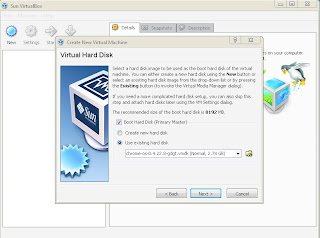
Click Finish.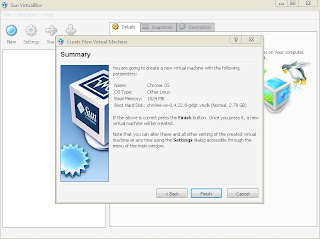
Now you have created a virtual machine.You can go to settings and then display tab to check "enable 3D acceleration" and adjust your virtual machine graphic memory.
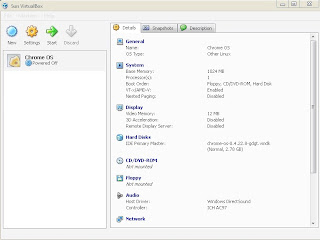
After that start the virtual machine.
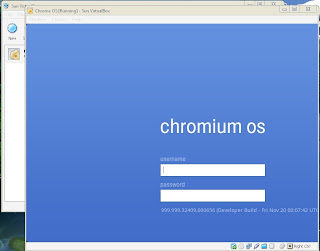
Type your gmail or hotmail account and password to log in the Chrome OS.
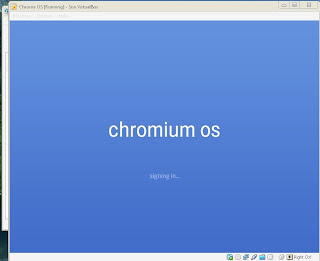
Enjoy.
You need to register an account at GDGT in order to download the Image.The file is about 300MB(compressed) and 700MB(uncompressed).
After that you need to download the VirtualBox setup
Currect version is version 3.0.12 on 17 November 2009.
Install VirtualBox on your PC.Open VirtualBox.

Click New.

Simply name the OS as 'Chrome OS" and the type you can choose "Linux" and "Others".

Set the RAM,it is recommended to choose 512MB depending on your current PC RAM you have.

Click the "use existing hard disk" and open your downloaded and uncompressed .vmdk file.

Like this.

Click next.

Click Finish.

Now you have created a virtual machine.You can go to settings and then display tab to check "enable 3D acceleration" and adjust your virtual machine graphic memory.

After that start the virtual machine.

Type your gmail or hotmail account and password to log in the Chrome OS.

Enjoy.
Friday, November 20, 2009
Solve Problem When Installing Zune Software
When you have downloaded the Zune Software setup from Zune.com you found that it says yoour computer need to run Windows Update in order to install Zune software.You can solve this problem by go to this website:http://www.microsoft.com/downloads/details.aspx?familyid=6136349f-2b32-4946-83b5-a09775531ef4&displaylang=en
Download the Zune Client software,version 4.0 and install it again.
Download the Zune Client software,version 4.0 and install it again.
Use Windows 7 Themes on Windows Vista and Windows XP
Microsoft released theme pack for Windows 7 that contains many wallpapers and shell file.The wallpaper will change accordingly to the time that set by the user.
If you want to use this wallpaper in your Windows Vista or Windows XP system,you can do it.
First download and install 7-zip from here
Use 7-zip to extract the file,like this...

Then you can see a folder that contain pictures and theme file,you can use the pictures as your wallpaper.

If you like the wallpaper slide show function in Windows 7,you can try the alternative program such as John's Background Switcher or Wally
John's Background Switcher screen shots:


Review of John's Background Switcher click here
Wally screen shots:
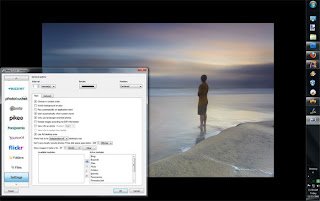
Review of Wally click here
To download more themes from Microsoft click here

Original Story click here
If you want to use this wallpaper in your Windows Vista or Windows XP system,you can do it.
First download and install 7-zip from here
Use 7-zip to extract the file,like this...

Then you can see a folder that contain pictures and theme file,you can use the pictures as your wallpaper.

If you like the wallpaper slide show function in Windows 7,you can try the alternative program such as John's Background Switcher or Wally
John's Background Switcher screen shots:


Review of John's Background Switcher click here
Wally screen shots:

Review of Wally click here
To download more themes from Microsoft click here

Original Story click here
Tuesday, August 25, 2009
Install Brushes in Photoshop
These are the steps on how to install brushes(.abr file) to be used in photoshop.
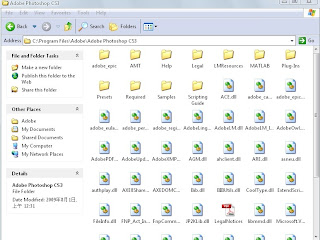
click presets
- first download the brushes the you wanted to use
- open my computer
- click the hardisk the your photoshop software is installed
- click program file
- click adobe
- click Adobe Photoshop CS3(depend on your photoshop version)

click presets
 Open the "brushes" folder the paste the .abr file into it.(make sure you closed your photoshop before you paste it)
- Open photoshop
- Then you can start using your new installed brushes.

Monday, June 29, 2009
Remove Internet Explorer 8 (IE8) from Windows 7
 These are the steps to remove Internet Explorer 8 (IE8) from Windows 7.
Start>Control Panel>Uninstall A Program>Turn Windows features on or off>untick Internet Explorer 8>OK
Windows will reboot one time,after you configure things,Windows will reboot again.
Sunday, June 14, 2009
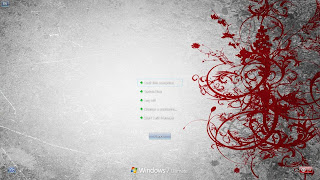
How To Change Logon Screen In Windows 7
These are the steps to change the logon screen in Windows 7.
Download this registration entries from here.
Extract it.You will see an registration entries inside the folder then merge it.
Download this registration entries from here.
Extract it.You will see an registration entries inside the folder then merge it.

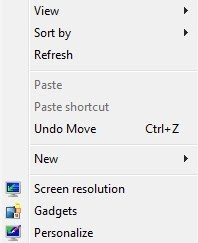
Check your screen resolution by right click on the desktop and click screen resolution.
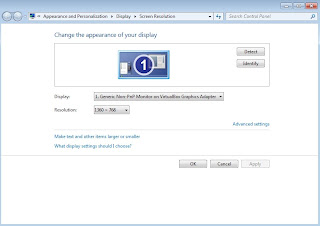 Remember your screen resolution because you need to create a picture that its pixel same as your screen resolution.These are the resolution that supported by Windows.
background768×1280.jpg
background960×1280.jpg
background900×1440.jpg
background1024×768.jpg
background1024×1280.jpg
background1280×768.jpg
background1280×960.jpg
background1280×1024.jpg
background1360×768.jpg
background1440×900.jpg
background1600×1200.jpg
background1920×1200.jpg
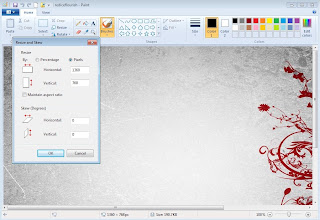 You can use paint to resize the resolution of the picture that you wanted it to replace the logon background.Please note that the picture must below than 256kb.
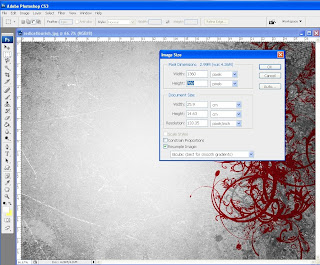 You can also use photoshop to adjust the picture screen resolution.
 If the picture is more than 256kb,you can adjust the quality of the picture by reduce its size less than 256kb when you "save as" the picture.The features is not available in paint.

 Remember your screen resolution because you need to create a picture that its pixel same as your screen resolution.These are the resolution that supported by Windows.
background768×1280.jpg
background960×1280.jpg
background900×1440.jpg
background1024×768.jpg
background1024×1280.jpg
background1280×768.jpg
background1280×960.jpg
background1280×1024.jpg
background1360×768.jpg
background1440×900.jpg
background1600×1200.jpg
background1920×1200.jpg
 You can use paint to resize the resolution of the picture that you wanted it to replace the logon background.Please note that the picture must below than 256kb.
 You can also use photoshop to adjust the picture screen resolution.

Open windows explorer>organize>folder and search option>view tab>untick(hide extensions for known file types)
Rename the picture that you have edited to "backgroundDefault.jpg"
Go to Computer>C:>Windows>System32>oobe>info>backgrounds
Create yourself the "info" and "backgrounds" folder if you dun have one.
If prompted by User Account Control,click yes to approve.
Paste the picture that you have edited inside the folder.(below 256kb)
Close all the windows then you are done.
Press Alt+Ctrl+Delete or log off to see the result.
These are the example(mine is 1360 x 760):
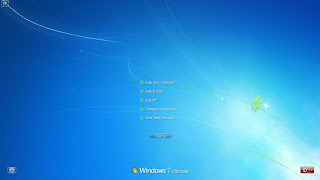

AFTER
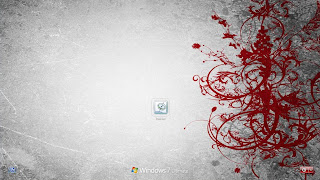
*If your screen resolution is not supported by Windows,for example:
Your screen resolution is 2560×1600,you can resize the picture to 1920×1200 can name it "background1920×1200.jpg",then name the original picture "backgroundDefault.jpg".(both picture must less than 256kb)
The "backgroundDefault.jpg" will be streched to fit and used by windows if windows cannot find the correct screen resolution.
Paste both picture into the backgrounds folder that you have created(means that that folder now got 2 picture inside).
Enjoy.
Credit by sevenforums and withinwindows.
Rename the picture that you have edited to "backgroundDefault.jpg"
Go to Computer>C:>Windows>System32>oobe>info>backgrounds
Create yourself the "info" and "backgrounds" folder if you dun have one.
If prompted by User Account Control,click yes to approve.
Paste the picture that you have edited inside the folder.(below 256kb)
Close all the windows then you are done.
Press Alt+Ctrl+Delete or log off to see the result.
These are the example(mine is 1360 x 760):
BEFORE


AFTER


*If your screen resolution is not supported by Windows,for example:
Your screen resolution is 2560×1600,you can resize the picture to 1920×1200 can name it "background1920×1200.jpg",then name the original picture "backgroundDefault.jpg".(both picture must less than 256kb)
The "backgroundDefault.jpg" will be streched to fit and used by windows if windows cannot find the correct screen resolution.
Paste both picture into the backgrounds folder that you have created(means that that folder now got 2 picture inside).
Enjoy.
Credit by sevenforums and withinwindows.
Sunday, December 14, 2008
How to enable TraceMonkey in Firefox 3.1 Beta 2
TraceMonkey is used by Firefox 3.1 Beta for faster JavaScript loading.It is faster than Firefox3 37.5 times.
Steps to try TraceMonkey:
Steps to try TraceMonkey:
- User must have Firefox 3.1 Beta 2 installed.
- Open a new tab
- type "about:config" and hit enter
- on the warning message,click "I'll be careful,I promise!"
- type in "jit" on the "Filter" tab.
- At the "Value" bar,change both "false" to "true" by double click it.
- Restart Firefox.
Friday, November 28, 2008
How To Mix Your Music With Audacity
These are the steps on how to mix audio with using Audacity:
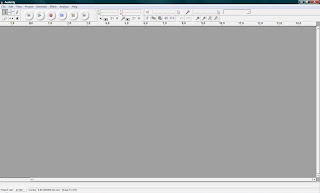
First,open Audicity
Then open first song that you want to mix
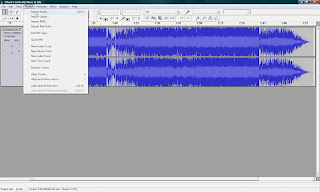
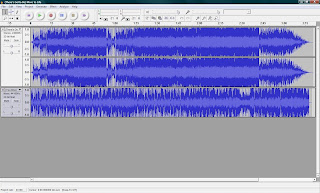
After that click Project>Import Audio,to import the second song you wanna mix
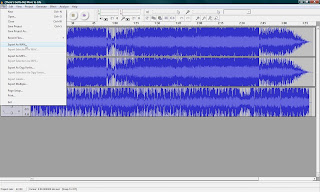
Then click file>export as WAV(this software cant export it as MP3 format),so you need a media coverter to convert the WAV sound to MP3 sound.
To download Audacity:http://www.download.com/Audacity/3000-2170_4-10058117.html?tag=mncol&cdlPid=10606824
To download media converter:http://www.download.com/Free-Mp3-Wma-Converter/3000-2140_4-10442362.html?tag=mncol&cdlPid=10902033

First,open Audicity
Then open first song that you want to mix


After that click Project>Import Audio,to import the second song you wanna mix

Then click file>export as WAV(this software cant export it as MP3 format),so you need a media coverter to convert the WAV sound to MP3 sound.
To download Audacity:http://www.download.com/Audacity/3000-2170_4-10058117.html?tag=mncol&cdlPid=10606824
To download media converter:http://www.download.com/Free-Mp3-Wma-Converter/3000-2140_4-10442362.html?tag=mncol&cdlPid=10902033
Subscribe to:
Posts (Atom)