Virtualbox is a virtual machine that can run various operating system in only one computer.
However the newest version(version 3),did not support Windows Aero.
You can use True Transparency in Virtualbox in order to get Windows Aero effect.
Showing posts with label virtualbox. Show all posts
Showing posts with label virtualbox. Show all posts
Saturday, November 28, 2009

Wednesday, November 25, 2009
Install Chrome OS on VirtualBox
Chrome OS is an operating system made by Google.You can first download the Image from GDGT
You need to register an account at GDGT in order to download the Image.The file is about 300MB(compressed) and 700MB(uncompressed).
After that you need to download the VirtualBox setup
Currect version is version 3.0.12 on 17 November 2009.
Install VirtualBox on your PC.Open VirtualBox.
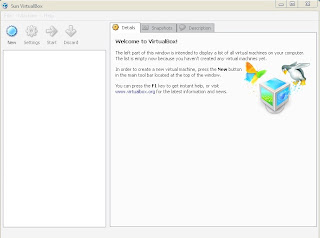
Click New.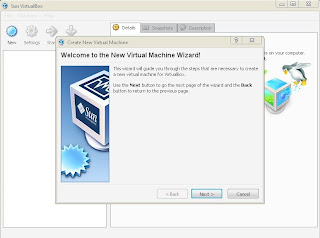
Simply name the OS as 'Chrome OS" and the type you can choose "Linux" and "Others".
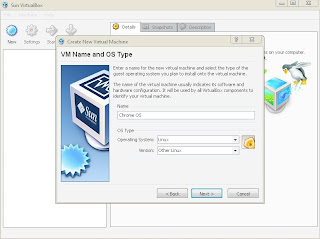
Set the RAM,it is recommended to choose 512MB depending on your current PC RAM you have.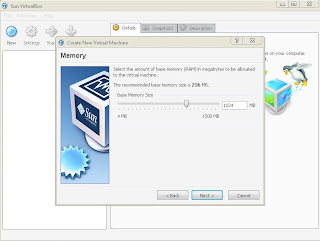
Click the "use existing hard disk" and open your downloaded and uncompressed .vmdk file.
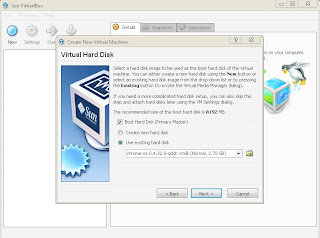
Like this.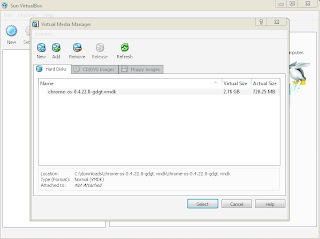
Click next.
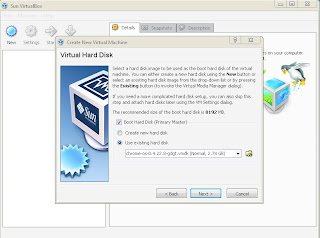
Click Finish.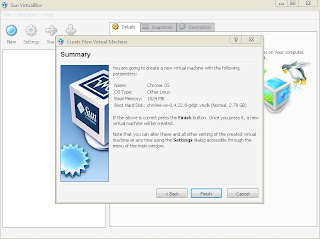
Now you have created a virtual machine.You can go to settings and then display tab to check "enable 3D acceleration" and adjust your virtual machine graphic memory.
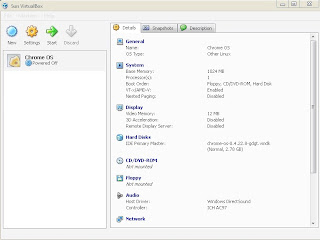
After that start the virtual machine.
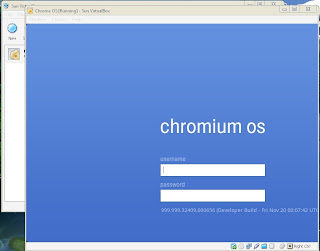
Type your gmail or hotmail account and password to log in the Chrome OS.
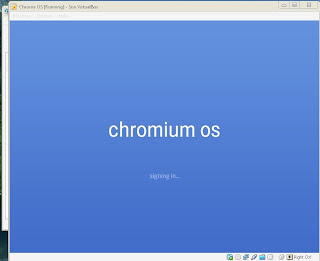
Enjoy.
You need to register an account at GDGT in order to download the Image.The file is about 300MB(compressed) and 700MB(uncompressed).
After that you need to download the VirtualBox setup
Currect version is version 3.0.12 on 17 November 2009.
Install VirtualBox on your PC.Open VirtualBox.

Click New.

Simply name the OS as 'Chrome OS" and the type you can choose "Linux" and "Others".

Set the RAM,it is recommended to choose 512MB depending on your current PC RAM you have.

Click the "use existing hard disk" and open your downloaded and uncompressed .vmdk file.

Like this.

Click next.

Click Finish.

Now you have created a virtual machine.You can go to settings and then display tab to check "enable 3D acceleration" and adjust your virtual machine graphic memory.

After that start the virtual machine.

Type your gmail or hotmail account and password to log in the Chrome OS.

Enjoy.
Tuesday, June 9, 2009
Steps to Install Windows 7 in Virtualbox
Information of virtualbox software click here.Information of Windows 7 click here.Information of steps to install virtualbox in windows click here.To download Windows 7 RC click here.
Virtualbox is the best alternative to try out the new Microsoft Windows 7 in the safe way.
These are the steps to install Windows 7 in virtualbox.(Windows 7 as guest)
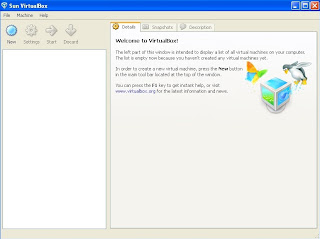 Open up virtualbox that you have installed
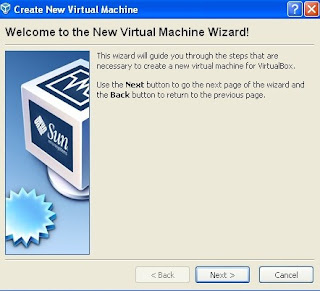 click next
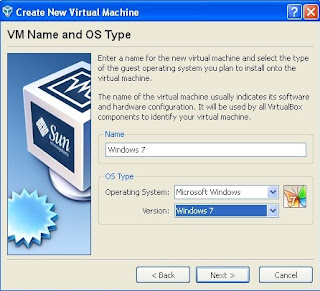 configure your OS name and OS type
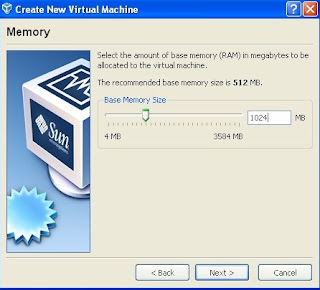 configure the amount of RAM needed by the guest operating system(Windows 7 required minimum of 1G of RAM,but 512MB still can run).Windows 7 required minimum of 16GB hard disk to run.
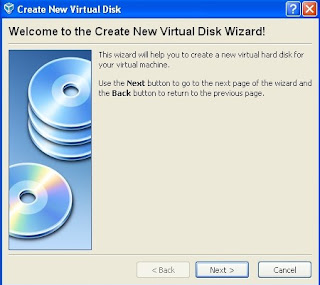 click next
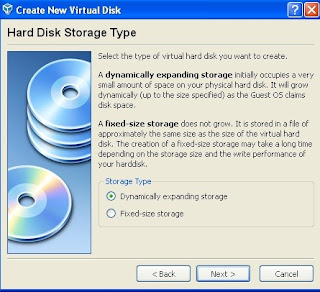 choose the hard disk storage type(choose dynamically expending storage)
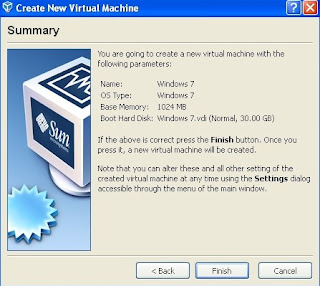 click finish
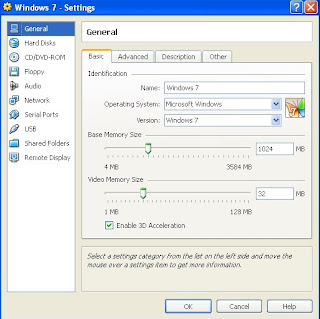 a virtual machine is created in virtualbox.Now click on setting on the virtualbox user interface a windows like this will pop up.This window shows the information of your virtual machine.Tick "enable 3D acceleration",Then click OK.
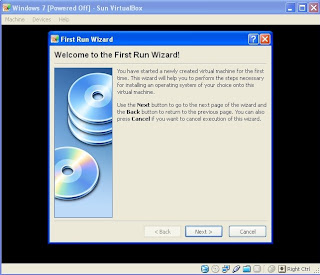 Start the virtual machine and click next.
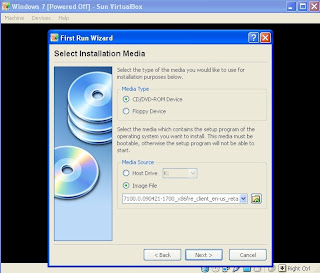 browse the Windows 7 ISO file the you have downloaded or loaded by DVD.Click next.
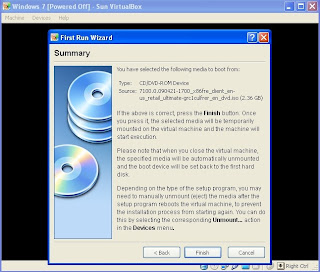 click next.
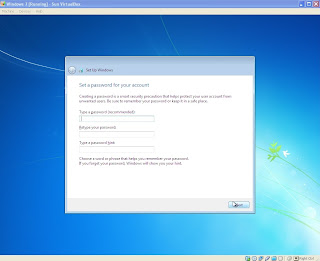 type your name...
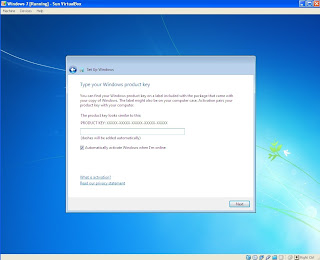 product key...get it from here if you dun have one
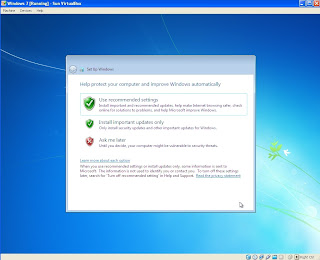 click use recommended settings
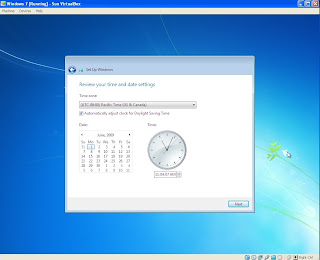 set the date and time
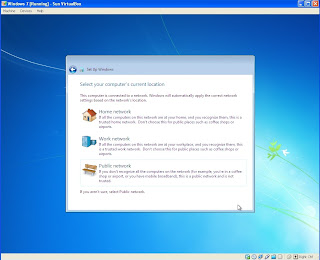 configure your network setting
Virtualbox is the best alternative to try out the new Microsoft Windows 7 in the safe way.
These are the steps to install Windows 7 in virtualbox.(Windows 7 as guest)
 Open up virtualbox that you have installed
 click next
 configure your OS name and OS type
 configure the amount of RAM needed by the guest operating system(Windows 7 required minimum of 1G of RAM,but 512MB still can run).Windows 7 required minimum of 16GB hard disk to run.
 click next
 choose the hard disk storage type(choose dynamically expending storage)
 click finish
 a virtual machine is created in virtualbox.Now click on setting on the virtualbox user interface a windows like this will pop up.This window shows the information of your virtual machine.Tick "enable 3D acceleration",Then click OK.
 Start the virtual machine and click next.
 browse the Windows 7 ISO file the you have downloaded or loaded by DVD.Click next.
 click next.
Windows 7 will start to install on your virtual machine.Please choose "custom" when install Windows 7.After finished install Windows 7...
 type your name...
 product key...get it from here if you dun have one
 click use recommended settings
 set the date and time
 configure your network setting
You are required to activate your Windows 7 within 30 days ater you have installed it.Windows 7 RC will expire on June 1 2012 and start from March 1 2010,Windows 7 will shut down every 2 hours.To download Windows Live Essentials click here.
Steps to install Virtualbox in Windows
innotek VirtualBox is a family of powerful x86 virtualization products for enterprise as well as home use. Not only is VirtualBox an extremely feature rich, high performance product for enterprise customers, it is also the only professional solution that is freely available as Open Source Software under the terms of the GNU General Public License (GPL).
VirtualBox runs on Mac OS X, Windows and Linux and supports a large number of guest operating systems including but not limited to Windows (NT 4.0, 2000, XP, Server 2003, Vista), DOS/Windows 3.x, Linux (2.4 and 2.6), and OpenBSD.
VirtualBox is being actively developed with frequent releases and has an ever growing list of features, supported guest operating systems and platforms it runs on. VirtualBox is a community effort backed by a dedicated company: everyone is encouraged to contribute while innotek ensures the product always meets professional quality criteria.(information from download.com)
This are the steps to install virtualbox...
-download the latest virtualbox setup from this webpage,you can download the user manual as well.
-run it
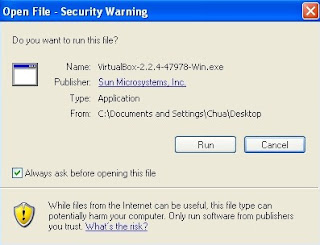
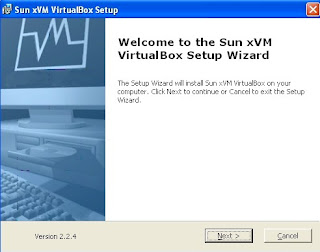 click next
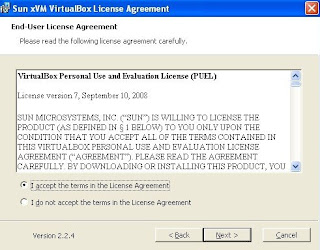 acept and click next
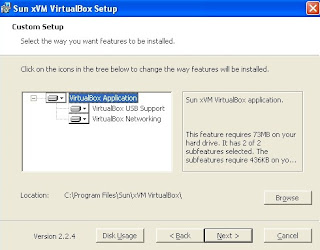 configure the location and features to install virtualbox then click next
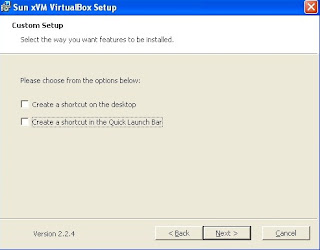 click next
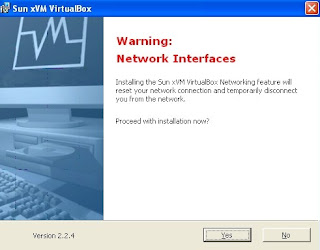 installation will disconnect your network connection,click next
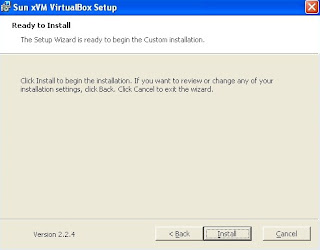 click next
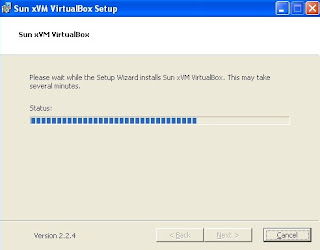 installing in process...
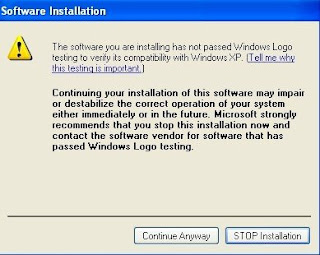 a warning message says that the software did not passed the Windows Logo testing(i tried for version 2.2.2 and 2.2.4 but the same thing happens),continue anyway,this software is very safe when i using it on my windows xp.
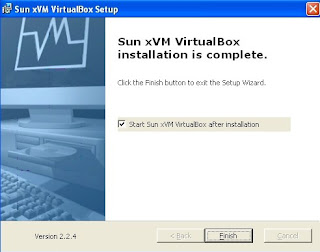 installation finished,click finish
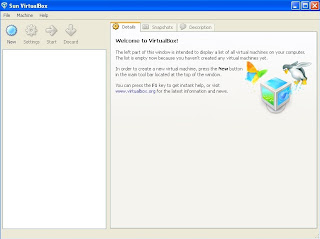 the user interface of virtualbox
VirtualBox runs on Mac OS X, Windows and Linux and supports a large number of guest operating systems including but not limited to Windows (NT 4.0, 2000, XP, Server 2003, Vista), DOS/Windows 3.x, Linux (2.4 and 2.6), and OpenBSD.
VirtualBox is being actively developed with frequent releases and has an ever growing list of features, supported guest operating systems and platforms it runs on. VirtualBox is a community effort backed by a dedicated company: everyone is encouraged to contribute while innotek ensures the product always meets professional quality criteria.(information from download.com)
This are the steps to install virtualbox...
-download the latest virtualbox setup from this webpage,you can download the user manual as well.
-run it

 click next
 acept and click next
 configure the location and features to install virtualbox then click next
 click next
 installation will disconnect your network connection,click next
 click next
 installing in process...
 a warning message says that the software did not passed the Windows Logo testing(i tried for version 2.2.2 and 2.2.4 but the same thing happens),continue anyway,this software is very safe when i using it on my windows xp.
 installation finished,click finish
 the user interface of virtualbox
These are the steps of installing virtualbox on windows OS.Enjoy.
Steps to install Windows 7 in virtualbox go here.
Steps to install Windows 7 in virtualbox go here.
Subscribe to:
Posts (Atom)